Showing posts with label Linux. Show all posts

Tuesday, April 29, 2014

Now for Something Different - Android on my Laptop

HP Slatebook 14 will come with Android
To be perfectly honest, I take little interest in tablets and smart phones and their operating systems.  If one day I own one, that might change.  I had heard of Google's Android phones and tablets, but last week when I randomly came across an old article explaining that Android is available to be installed on laptops, I couldn't help but to be curious.

I did some investigation to find out that laptops are currently being put on the market with Android.  So, I headed over to the site for the Android X-86 project, downloaded the ISO and I was off to the races.

Background - My Experience with Tablet Operating Systems

When my wife bought a new laptop with Windows 8 on a year and a half ago, I realized very quickly that I was not a fan of the new app-based start screen.  To me it looks clumsy, disorganized and in general very visually unappealing.  This surprised me from Microsoft.  (This was also one of the final steps to push me towards Linux, but that's a different story.)

Windows 8 - Bulky and visually unappealing
I also guessed that part of what Microsoft was doing was making an operating system suitable for/based on the smart-phone/tablet OS concept.  To begin with, this gave me a dislike for the idea in general.

Later, however, I tried some netbook-oriented desktop layouts, which basically work on the same visual concepts, without the focus on web-apps.  For example, Kubuntu's netbook remix has a very similar layout concept to that of Android.  In fact, while I'm not a fan of Kubuntu/KDE's visuals in general, I did like the netbook remix because of this; I probably would've gone with that, except that it was noticeably slower on a netbook than Xubuntu/XFCE.

Also, even though I focused on learning the command-line in Linux, Ubuntu's Software Center get me used to the idea of a web-store for apps.  By the time I dove into Google Play on my newly installed Android OS, it no However longer seemed foreign and awkward.

A laptop with Android
Advantages of Android on a Netbook

Although I have not dived very deep into Android and I have not customized the desktop as much as I would like, I have found some real advantages, including these:

  1. It's Very Lightweight and Fast - Android was designed for smartphones and tablets which are not high-powered machines.  Therefore, it works extremely well on the light-weight netbooks like my Acer Aspire One.  Anyone who has installed a Linux distro will notice that the ISO downloads and sets up in Unetbootin really quickly.  Installation is also the fastest I've tried (except for Puppy Linux, perhaps.)
  2. It's Visually Ideal - Smartphones and tablets have small screens, and Android's layout was set up accordingly with large icons and quickly accessible full-screen navigation instead of traditional menus.  It's also a very nice looking desktop.
  3. There are Many Apps Available - Google has ensured that Android is well-provided for in Google Play, not only with ultra-light smartphone apps, but also with a number of fully functional programs like Chrome. (I was actually surprised to see that Chrome was not the default.)
  4. It's Linux - Most Android users don't know that it's Linux.  That having been said, the experience, as I see it, is un-Linux-like; for example, you can't just go into a terminal window and use the commands that seem to work in just about every other Linux distro.
Some Disadvantages/Problems

First of all, I assume that the new laptops that come with Android installed have fixed any problems to make it run ideally on a laptop.  But installing it as I did, I've found the following issues:

  1. Screenshot doesn't work - The ones on this post are borrowed from other sites.
  2. Mouse function is touchscreen-style - Instead of being able to click and drag to highlight text in a web browser, for example, you have to click and hold until it hightlights a section, at which point you can use the cursor or arrows to change what's selected.  Scrolling in any app is dragging the screen rather than clicking on an arrow/scrollbar or using arrows.  This isn't really a "problem" but it takes getting used to.  It would be perfect for a laptop with touchscreen.
  3. Some apps won't run in the background - For example, three Grooveshark music player apps I found (not to mention the website) stops working as soon as you navigate to a different app or even the desktop.  I think you can find apps that especially indicate that they keep running, but this point is a nuisance since some apps (like music apps) are useless if they don't run in the background.
  4. The screen saver flickers on and off.
  5. Dual booting is tricky to set up - If you've dual booted before, the process is quite different.  For someone just trying to rescue an old netbook for easy web access this wouldn't be a problem.  For anyone else, these instructions from Webupd8 work perfectly.
The Android X86 installation screen
There may be solutions to these issues.  As for installing and having a fully functional desktop without having to fix and adjust first (a point in which most Linux distros I've used excel) there needs to be some improvement.  However, it is a very lightweight, fast and visually appealing operating system.  While I probably wouldn't use it for myself, once some of the glitches are worked out, I would consider installing it on a netbook for someone else - especially someone who's already used to using a smartphone.  It's definitely a huge improvement on the monstrosity called Windows 8 which instead of becoming slimmer and sleeker seems to me to be bulky and awkward - both visually and in usage.  Android is sleek and well-designed in both aspects.

In the mean time, I'm definitely going to keep fiddling around with it to see what's possible.

Monday, April 28, 2014

Arch Linux - Having Some Fun

The Arch Linux installation boot screen
Last Wednesday, I shared a few considerations I think people should make before trying Arch Linux.  The most important of these is that if you're going to dive in, I would say you should go in ready to have fun with it; i.e. be prepared to try a lot of different programs, see if you can set stuff up "the hard way," experiment with new desktop environments, try building your own, etc.

And, of course, as I said last time, you will break things.  You will break things to the point that you can't figure out how to fix them and start all over again; rather than stressing out about that, let that be a part of the fun!

These are some of the things I had fun with.

Installation

The fstab file - to tell your computer where to mount each partition
Installing Ubuntu or Mint is easy; it's supposed to be easy and largely hands-off.  That is a good thing.  Had that not been the case, I probably would've given up on Linux when I first tried.

When installing Arch Linux, you have to do everything manually, from installing sudo to setting up your wireless network, to telling it which mirrors to use.  If you do what I did, and make Arch an experiment rather than trying to depend on it as your main operating system to begin with, this is tonnes of fun because you get to learn a lot about how Linux works.  Some things I learned included how audio and internet are set up.

This is also where I learned what fstab is (/etc/fstab/) and how to edit it to tell Linux which partitions to mount when it loads.

The X window system, in which other desktops run
I also learned what the X graphic environment is, and what it looks like when there is no pretty desktop environment installed over it.

Installation could go quickly if you follow the guide and all goes well.  But I found it was the ones that went wrong in some way or another - and ended eating up hours of my time - where I learned the most.

There are several steps to the installation where I just follow the guide, and I don't get them yet - but that will come with time.

As I pointed out last time, this guide on how to install Arch Linux is good to have open beside you on another computer.

Desktop Environments

One thing I've used Arch for is to install and test-drive various desktop environments, such as Gnome, Sugar, KDE, LXDE, Enlightenment, OpenBox, etc.  You can also do this in Ubuntu or any other distro, but since I've reserved Arch as my experimenting distro, I do it here.  That way, I keep Xubuntu clean and tidy for work and every day use.

Also, since Arch is so clean and smooth-running, it gives an excellent way to test these at their best performance.

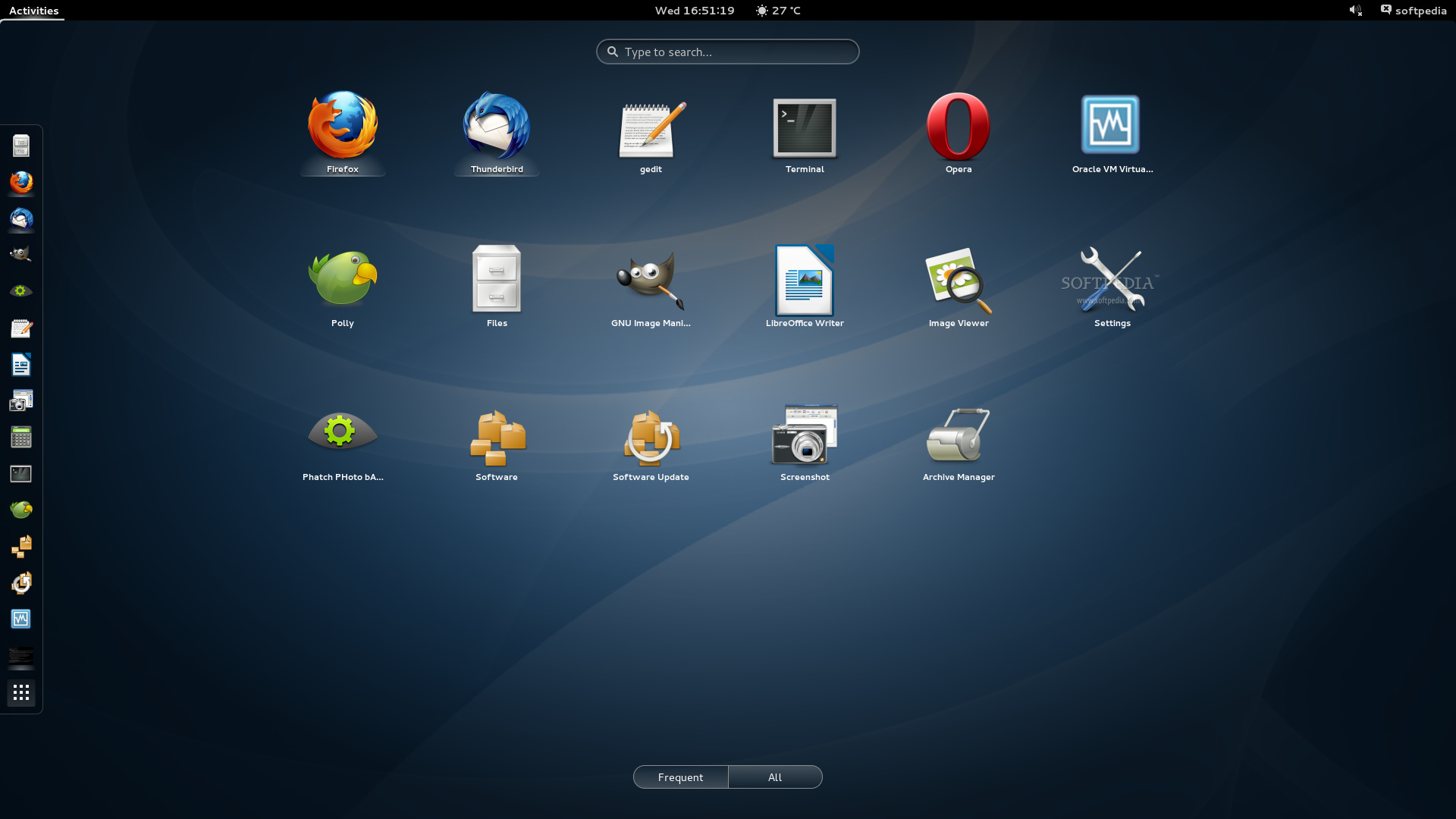
Gnome in Arch Linux
The guide I mention above offers this as the last step.  But, as the writer says, if you stop at that, you've missed the point.  At the very least, testing various desktop environments is a good next step.


Personalized Desktop Environments

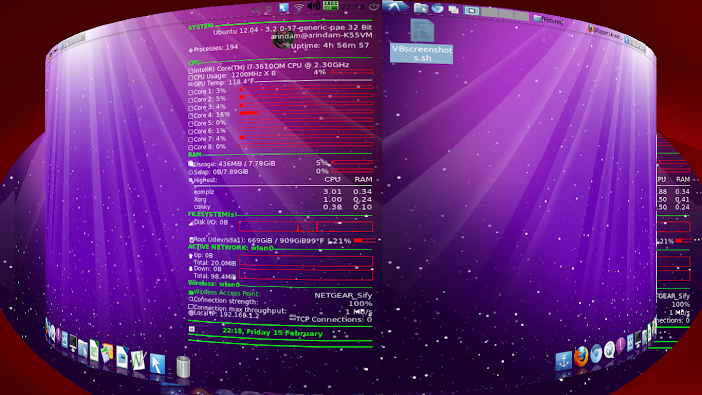
For me, this one is quite fun.  I started off by following this guide on creating a custom DE, adapting it for Arch (it's for Ubuntu.) I discovered that Compiz actually includes a wallpaper manager, so it is not necessary to install another one.  I used Emerald for the window  decoration, which looks really nice, sort of metallic and transparent.

Even though Compiz is not light-weight and is typically associated with rather resource-hungry desktop environments (Ubuntu, for example, in which the Unity desktop is plugin for Compiz,) I found this combination to be fast and very responsive; Compiz includes enough features that you don't have install much else.

For a dock, I installed Cairo-dock, which has a very Mac-like look to it, is very visually appealing and has a lot of useful plugins and applets.

Again, all of this could be done in Ubuntu, but in addition to the points mentioned above, the excellent documentation for Arch make it easier to do things and work out any problems that turn up.

Arch with Compiz and Cairo-dock
AUR and Building from Code

While Arch has fewer applications in its official repositories, it has a huge number of applications in the Arch User Repositories (AUR.)  From the angle I'm taking here (i.e. the challenges of Arch are fun,) this has two advantages.

One is that it makes many more programs available to choose from.

The other is that you learn to build from code.  You download compressed .tar.gz files ("tarball",) decompress them with tar -xvf, compile them (usually make, ./config and makepkg) and finally install with pacman -U.  When you first try this, it is truly a pain and headache.  There are always dependencies, and some have to be downloaded from AUR and compiled; sometimes dependencies have dependencies, and you loose track of where you were.

But in the process, you learn a little more about how installing packages works "behind the scenes," and after you do it a few times, it's not all that hard.

See https://wiki.archlinux.org/index.php/AUR, and note especially the section on installing packages.

Finally, there is a program called "Yaourt" (which you have to download and compile from the AUR) which does all of this automatically.  Once you've installed Yaourt, you can use it just like pacman.  I recommend using Yaourt from the get-go so when all you want to do is install Compiz, you don't spend hours just installing it.  But now and then, I would do it the long & hard way just to get to know the process.  You'll have to do this at least once (plus one dependency) to install Yaourt anyway.

The terminal wifi-menu option
Some Challenges - Icon Themes, Network Indicator

Building a custom desktop has its challenges. For example, there is no icon theme and some little things don't work automatically, like the network indicator in the indicator applet in the panel/dock.  If you install a desktop environment like Gnome first, it will automatically use the icon theme and other settings.  However, if you install only a custom desktop to begin with (from the command line, at the end of the installation process linked above) they won't be there.

I have not yet figured out how to make them work. This is not a problem because they don't effect functionality (networks can be detected and connected to easily from the command line, it just doesn't look as "pretty") and I don't depend on my experimental Arch desktops for daily use.

Finally (and most importantly) they give me more things to figure, and more fun to look forward to in the future.

Conclusion

It would be entirely reasonable to set up a permanent installation of Arch with my favourite DE, XFCE (which is what Xubuntu runs.)  There would probably be advantages like this, such as slightly snappier and lighter running, and rolling updates.  In the future, maybe after experimenting with it for a while, I would consider this.

But the bottom line is that I'm entirely happy with Xubuntu without any complaints.  For now, I'm happy to use Arch as my fun distro for experimenting, building, breaking and learning.

Wednesday, April 23, 2014

Linux Round 2: Do You Dare Try Arch Linux?

In my initial delving into the world of Linux, I settled on Xubuntu as the best distro for my usage (and for my computer,) and then learned how to adapt it for a netbook and customized the program suite.
Since then, I've spend some time on and off experimenting with other Linux distros.  So far, in my still very limited knowledge, I have come to 3 conclusions:

  1. Xubuntu is still the best for me - For my day to day usage, I continue to use Xubuntu pretty much as I set it up a year ago, with only very minor modifications.
  2. I would recommend Linux to pretty much anyone - It comes in so many shapes, sizes and versions, many of which are completely usable "out of the box" (i.e. without any modification) that most people will find a version that will not only meet all of their needs but also be visually appealing.
  3. Linux is lots of fun - For people who simply want a more functional alternative to Windows, find a good distro, and stick with it. For others, there's lots of fun to be had with trying out different desktops, modifying visuals, adapting to your needs, figuring out what's going on behind the visual facade of a monitor, etc.
Arch Linux - The Real Thing!

As for this last point, one of my ongoing side projects after settling on Xubuntu has been fiddling around with Arch Linux.

If you've been around the Linux world for any time, you've probably heard that Arch is one of the best distos out there, with very clean code, no software clutter, no unnecessary processes eating up your computer's resources and completely customizable, so you make it exactly what you want it to be.  Many experts will rate it 10/10 at the top of the Linux distos available.

As far as I can tell, all of this seems to be true.

Compiz Cube
So far, of programs I've tried in different distros, they seem to work faster and be more responsive in Arch.  For example, just last week I tried setting up the Compiz cube workspace selector for the first time. On my little netbook, in Arch it worked flawlessly, spinning around through the workspaces without any noticeable distortion, etc.  In Ubuntu, it felt like it was too much for this light-weight computer and the screens ended looking twisted in the transition process.

Pacman, the program used to install new programs on the computer, is also amazing.

But ...

When I was 4 years old, I saw my two older brothers riding around on their bikes without training wheels.  Before I would get onto my new bike, I insisted that my dad take the training wheels off.  I returned home scraped and bruised and still wobbly on my bike, but with my pride completely in tact, knowing that I could ride a bike the way my older brothers did, without those training wheels that little kids have to use.

With Arch, there are no training wheels ... or helmet
I think my experience with Arch Linux has been a similar one.

Besides all the praise, anyone reading up on Arch will quickly also find the warnings that you have to know what you're doing.  This is true.  I read these warnings too, but in my typical fashion, I decided to jump right in, just to prove (to myself) that I could do it - and I can tell you, I've had my share of scrapes and bruises, not to mention that I am a far cry from being good at this yet.

But, as with my bike, I can now say I did it.

Starting With Arch - A Checklist

First of all, I will repeat the warnings: if you are new to Linux and looking for that ideal distro to suit your needs, don't even try Arch - for now.  My prediction is that it would drive you away from Linux.

I am not the one to give advice here, since I am so new to everything, but I would suggest the following as prerequisites:

  • You know how to dual boot.
  • You know how to configure and fix Grub, the program that boots your operating system, at least using an online guide if necessary.
  • You have another computer available at any time to look up instructions or how to fix what you've broken. (You will break things.)
  • You've customized some a more user-friendly distro (Ubuntu, Mint, etc.)
  • You've (successfully) fiddled around with configuration files (not the visual GUIs that make it easy, but the actual file.)
Dual Booting and Grub

 
I recommend knowing how to do this as the first necessity because it allows to have your stable distro on one partition, and then have another distro "in the works" on another.  This way, if your desktop is still under construction and not yet what you need it to be, or you break it (again, you will break it) your computer is still usable for day to day usage in your main distro.

You don't really have to know how to do this, but more importantly know where to find it.  This is where that second computer is very important.

For dual booting, see this guide for dual booting linux and Windows. (A very similar process can be applied to dual booting Ubuntu and Arch Linux.)

This guide explains how Grub works and how to do basic repairs.  This one tells you how to make Grub give you a menu after installing Windows.  Generally speaking, if you add a second installation, Linux distros will set up Grub to give you a menu, but it's good to know what to do when something goes wrong.

The first time I tried dual booting, the new distro simply loaded right after the boot and I was worried I had lost my main, customized Xubuntu installation with all my files. They were backed up, but at that time, the idea of going through it all again was not very appealing.  As it turned out, I just had to fix Grub.

If you are comfortable dual booting and fixing Grub, then knowing how to modify and customize is less important since it allows you to go back to your main distro at any time or scrap what you've done and start from scratch.


Finally, A Few Tips

Again, I'm far from being an expert, but sometimes tips from someone who is just going through the learning process can be more helpful than those from someone who knows it so well that they think it's easy.  So, if you decide now is the right time to try Arch, do the following:

Use a How to Guide - A Necessity

When people say it's an absolute necessity to have a how-to guide to set up Arch Linux, they really mean it's a necessity, as opposed to a good option to make it easier; without the guide, you'll boot Arch, get a command line and have no idea what to do next.  If you remember some terminal commands from Ubuntu, let's say, it's likely none of them will work since you haven't installed the programs yet.

Arch Linux has its own installation guide but I prefer this one from Whitson Gordon at Lifehacker.  Here, you will need a second computer so you can read the guide as you install.

Have a Wired Internet Connect

Whitson recommends this, but on my first go, I decided to try using a wireless connection anyway.  I spent several hours digging deeper and deeper into the Arch Linux documentation (which is excellent and exhaustive, by the way) until I finally got it working.  With a wired connection the second time, it was working in 2 minutes.  Once you have the installation set up, it's very easy to set up wireless.

The ArchBang installation boot screen
Start Off with Arch Bang

Arch Bang is a variation of Arch that comes fully usable with a visual desktop environment (Openbox) and all the basics you need to begin.  For example, networks, sound and video card are all set up; in Arch you have to do these yourself.  The boot disk also guides you through installation, including setting up Grub.

Once you have it installed you can try installing other desktop environments, etc.

It doesn't give you the full Arch installation experience (= more in depth knowledge of Linux and plenty of headaches) but it does give you a way to get used to installing and customizing Arch ahead of time and ease into the process.  More than once, I've thrown away an unsuccessful attempt at doing what I want in Arch, and doing in Arch Bang first to get a better idea of where I'm going wrong.  I later go back and try it from a new installation of Arch.  You can also get used to using Pacman, Arch's superior package manager (to install new programs) and the online documentation (which is the same for Arch Linux and Arch Bang.)  I suggest this is a good way to start, before trying to install Arch from scratch.

Have Fun and Try Lots of New Things

If all you want to do is install a good distro on your computer, and use it that way for the next 5 years, I would say there's little point to going to Arch.  For me, that's what Xubuntu is.  Yes, it's very stable, clean and fast, but I wouldn't say it's worth going through the rather longish learning process for that. It is worth it, though, for lots of experimentation and fun.

Tomorrow I'll share some of the things I've tried in Arch.

Saturday, June 8, 2013

Xubuntu and The Perfect Programs for Me

Some of my new programs in Application Finder
Last post, I talked about how I made Xubuntu visually ideal for a netbook; it already functions perfectly.  Today, I'm just going to give a list of programs I added.  You'll notice they're mostly office items; for multimedia I just use the internet browser (Youtube for videos and Grooveshark for music.)


System and running utilities:
Synapse - Yesterday, I described this neat tool - the perfect combination of a menu and a program, document and folder search, as well as a bunch of other stuff.
Synaptic - Not to be confused with Synapse above, this program installs and removes programs. It has a simpler user interface than the default Ubuntu Software Center, but is faster, more flexible, and better at cleaning up removed programs.
Deja Dup (backup) - This backs up files onto a hard drive or cloud drive (like Google Drive or Dropbox.) The first back up took about 30 minutes, and after that about 10.
Gnome Disk Utility - This formats and creates partitions on disks. It also checks basic disk health and temperature.
Java (open jdk java 7) - LibreOffice needs this.
Firewall (ufw & gufw) – They say Linux doesn't usually need security software. Just in case.
Unebootin (create boot USBs) - This allows you to put any Ubuntu and many other Linux distributions on a USB, either to test run from the USB or to install on another computer. I used it for that second laptop, and just to have fun testing out other operating systems for netbooks.
Skype sign in on my desktop
Office & internet:
LibreOffice – This is a complete office suite, like Microsoft Office, but free. I hid the Standard menu since I use ctrl-s to save. I only have the formatting menu, again saving vertical space.
Chrome - Although I've reconciled with Firefox, in the end Chrome is still slightly faster. It also saves all my browser settings to my gmail account so I can use them on any computer. No bookmark toolbar or menus, only the tabs on top.
Skype - I use it for work. They don't let you open your user from other programs.
Adobe reader - The PDF reader included doesn't work for secured PDFs.
Cheese – This program takes pictures and videos from the webcam. Mostly for fun with the kids. (It also sinstalls Brasero, Nautilus and several other programs with it that are useless to me; so I removed them.)
Because of these additions, I could also eliminate: AbiWord , Gnumeric , Document Viewer , Firefoxy and Xchat . Firefox is fine, but I don't need 2. Xchat is redundant since besides Skype, Thunderbird also includes a chat option that can integrate Google Talk and Facebook chat.

Friday, June 7, 2013

Xubuntu: How to Adapt it for a Netbook's Small Screen

Chrome full-screen, with my adapted main panel to the left

I love minis – usually called “netbooks” in the normal world. In fact, I've come to like them so much, I would probably buy one even if I could afford a full-sized laptop.
But there's only one problem; as Isaid on Tuesday, most operating systems are not made for them. Either you get too much squished into the screen and everything's tiny, or the operating system eats up too much memory for these light-performance machines, or – most often – both.
Yesterday, we saw some nice options in the other Ubuntu variations for netbook-specific desktops that I've actually tried. There are other Linux-based systems also that look nice from the screenshots I've seen.
My solution: use an operating system that's light-weight but very customizable, like Xubuntu.
Xubuntu – Lightweight, Visually Pleasant & Flexible
As I pointed out last post, Xubuntu is not visually laid out for netbooks. However, it offers these advantages:
  • it is lightweight – it works at lightning speed on my Acer One Aspire
  • it looks nice – it's no Windows 7 or Ubuntu, but it's clean and elegantly designed; several other light-weight Linux distributions I tested looked clumsy, or at best very bland – not Xubuntu
  • it's very customizable – for the most part, you can make it do what you want, if you know how; a few weeks ago I did not know how, but in the Ubuntu world, Google answers all
So, after being satisfied that Xubuntu was the best balance of rapid performance, features and visual appeal for my netbook and my needs, I set out to optimize it visually for a small screen.
I will start off by simply listing the changes I made with a brief description why. At the bottom I will offer brief instructions about how to make them, if anyone reading this is actually interested in installing Xubuntu on a mini.
The Changes I Made for a Netbook's Small Screen
The basic concept of these changes is to make everything as big as possible without cluttering the screen, and have everything appear full screen:

1. Synapse Searching and Launching – This is the best and fastest search and launch feature I have used. As you type, it auto-completes with suggestions from files, programs and folders, based on what you've used most and recently. Hitting “enter” launches the selection immediately. This is not specifically a netbook customization, but it eliminates 90% of menu use. On a very small screen, menus are a nuisance. It also eliminates the need for quick-launching buttons in the panels (for common programs like word) saving space.

This is what Synapse looks like:

2. Maximus – This simple program makes all windows open automatically maximized. On a netbook, fullscreen is the best way to go.

3. Panel Adaptation - I replaced the top menu panel and bottom quick-launch panel (which by default look pretty much like a simpler version of what you see in Mac) with 2 side panels:
  • Left Panel – Start Menu (“Applications”), Synapse, Show-Desktop Icon, Clock, and all indicators and notifications (battery, network, etc.) I increased the size to 60 pixels and made it icons only with no text.
  • Right Panel – Shows icons for all open windows; medium icons only (48).
  • Auto Hide & Appear – When the panels are not being used, they are hidden. The appear when you move the mouse to the edge of the screen. This means maximized windows are full screen, optimizing the screen space.
    both panels with the panel modification menu open: notice the green "S" Synapse icon, top left, 2nd from the top
With Synapse, I found all the quick-launch icons have simply not been necessary. On the whole, the narrow main panel that appears on the bottom for windows and on the top for Xubuntu/Ubuntu is not very useful for netbooks, since it's hard to see and eats up much needed vertical space. As an auto-hide side menu with large icons it takes less space and is easier to see everything quickly.

4. Windows & Themes – The following changes in the Settings Manager work wonders:
  • greybird compact ” theme, which has a very narrow, grey header on all windows (with Maximus, mentioned above, there's an option to make all the headers disappear entirely!)
  • default font size - 12
  • reduce workspaces to one 1 – the default is 2, but I found I can work with everything in the same workspace; with two I found I kept having to move open windows between them, although it can help to keep the “open window” panel less cluttered.
  • desktop icons – only removable devices, like USB sticks or external hard drives; For some reason, Synapse doesn't search for these or their content, so it's nice to have a quick-launch somewhere
  • increase menu icon and text size – As I said, Synapse eliminates the need for most menu use, but when I do use the main menu, I don't like to squint; with a size of 28, they are nicely visible, but the entire main menu still fits on the screen; it almost fills it. (This change isn't in the Setting Manager. It requires changing the menu settings file, which is easy, you just have to know how.)

My full screen in the file browser; notice the larger fonts and icons, and the open-window menu on the right
5. Program Zoom – Besides increasing the size of everything in the Xubuntu desktop, I found it more comfortable if I increased the zoom within each program to about 125-140%. In word documents, this still easily fits the entire text onto the screen. On the internet (Firefox or Chrome) I found most pages have all of their main information on 2/3 of the page (either left or right side); the rest is ads or menus. For a few, you have to scroll back and forth, but I haven't found this is common. (See the screenshot at the very top of this post.)

Come to think of it, this post is already too long, so I'm not going to describe how to make these changes step by step. If you need to know how to do any of this, please let me know.

Tomorrow I will share a list of programs I added, that have nothing to do with netbooks, but make life easier for me.

Tuesday, June 4, 2013

Are There Operating Systems for Netbooks? Windows vs. The Ubuntus

Ubuntu - with large icons and large, clean menus

A few weeks ago, I wrote a series of posts about how I rescued two netbooks (which I usually call “minis”) from the trash heap by removing Windows and installing Xubuntu. Today I'm going to write about how Ubuntu and its variations (of which Xubuntu is one) are ideal specifically for netbooks. Tomorrow I'll share some info on specific customizations I made to Xubuntu.


Not for Netbooks!!!
Before entering the world of Ubuntu (the Linux operating system of which Xubuntu is a lighter variation) I had never seen an operating system for a mini. I just assumed that you had to deal with the fact that you would be seeing everything in fine print, simply shrunk down to fit on a smaller screen.
Windows 8 has addressed this somewhat with their tablet-like app-focused start-up screen, and automatic full-screen for all apps run out of the start screen make it visually ideal for minis. Menus and search bars also disappear and only appear on demand.
Visually, they got it right. Not perfect, but definitely the right concept.
Kubuntu's Netbook Remix
However, considering that Windows 7 and even XP bog down minis to the point of complete dysfunction and uselessness, I'm not sure that Windows 8 which is even heavier and messier woud work well on a mini. It's not worth my while to try.


The Ubuntu Solution for Netbooks
The Ubuntu family of operating systems includes 4 main options. Of these:
Ubuntu's desktop (called “Unity”) is already ideal for netbooks with a sleek sidebar for launching programs quickly, and a universal search/menu button in the top left corner. It searches your entire computer, and the web, as you type!
Lubuntu's bland & funtcional netbook option
Kubuntu has a built-in netbook “remix” (see the screenshot above.) When you run Kubuntu it automatically detects that you're using a netbook and runs the desktop as a visually-appealing full-screen menu with the menu headings (“Office”, “System”, “Internet,” etc.) appearing as icons across the top, and the program options appearing as icons on the desktop. Only the items in the category selected appear. There is an automatic search which (as with Ubuntu) searches as you type, bringing up any programs, files, folders and locations.
Lubuntu, the lightest-weight option (with which I rescued an abandoned PC in my parents' house 2 weeks ago) also has netbook desktop, but you have to log out and choose to log in again as a netbook. Like Lubuntu in general, it looks rather bland, offering the desktop as a full-screen menu, with tabs on the top for the menu headings and icons for each program – kind of like Kubuntu, but “stone-age” instead of “space-age” in appearance. Also like Lubuntu in general, it works at lightning speed and very clean.


But I Chose Xubuntu – With No Netbook Option
Of the 4, Xubuntu, the second lightest, is the only one without a netbook design or option. And it's the one I'm using. I've chosen to stick with Xubuntu because it's noticeably faster than Ubuntu and Kubuntu; both of those are much faster that Windows 7 on this mini, but I like the fact that I can open 6 programs at once and begin browsing the web immediately while the other programs load without any delay.
Xubuntu, nice but not visually netbook friendly - yet
My wife pointed out to me that I was talking about seconds of waiting. I'm being picky. But I like the fact that I can be picky and have my computer working almost exactly as I want.

The bottom line is that Xubuntu is almost as light as Lubuntu, but looks much better. Since it works fast enough on my Acer Aspire One mini, I'm sticking with it.
And the final point is that, perhaps more than the other 3 options, and 1000x more than Windows, Xubuntu is very flexible and adjustable to make it look how you need.
So tomorrow I will write about how I've tweaked Xubuntu to make it visually netbook-friendly.

Tuesday, May 14, 2013

How Xubuntu Saved a Laptop Abandoned for 2 Years

My original mini, no running on Xubuntu
This is my last Xubuntu post, I promise (for now, at least.)

I just want to share one more story - how Xubuntu saved a laptop (another mini - Acer Aspire One, very similar to this one) which I had abandoned at a computer repair shop as "burned out" for two years.

Lightning Strikes
In April 2011 (during the same days when I joined the Catholic Church - completely unrelated, but just happened to be at the same time) my brother was using my first Acer mini up in his bedroom at my parents' house.  Lightning struck somewhere nearby.  Power went out.  And so did my laptop.  It wasn't supposed to. It had a battery that generally lasted 2 - 3 hours.

I tried to boot it but after the initial boot screen it just sat there with a blank monitor.  The hard drive seemed to be making noises, but that's all.

Lightning or Windows XP?
To be honest, the computer had begun to slow down little by little, getting bogged down, freezing up ... it seemed like it was on its last legs, similar to what was happening with this laptop when I changed to Xubuntu.  But was it that it finally froze up completely or that a power surge had fried it? I now know that it was primarily a software problem, but at the time the lightning seemed more plausible.

The Computer Shop
The next day I took the laptop to a store - Staples Business Depot - for repairs.  They told me that the motherboard had a burn mark on it and the operating system was corrupted.  Exactly why Windows XP had slowly deteriorated I still don't know (I suspect it's the same reasons why Windows 7 slowly deteriorated on this laptop.)  But the burn mark also made sense considering the apparent power surge it experienced a day earlier.

The repair costs would start at $450 and could go up from there.  On the other hand, they had a new, slightly better Acer Aspire One on special (it was a model on clearance) for only $200.  When I came back to talk to the technician the salesman was already there ready to sell me the mini.

The choice was a no-brainer, at least at the time.  (That mini is the one I still use.)

The box my computer was stored in, with a note not to discard it
Two Years Later ...
About a month ago, my wife got a call from that same store.  They had my old laptop on the shelf.  After buying the new laptop, I walked out of the store without taking the old one or instructing them what to do with it.  They have a time limit when they are no longer responsible for abandoned items, but since there was a change in technician, the new employee did not want to recycle the laptop until he had at least attempted to make contact with me.  By pure luck, the mini stayed stored in a box, low priority on his to-do list for nearly two years.

Calling back about the laptop was also low priority for me - after all, I would just be authorizing them to junk it.

Then Came Xubuntu
But last week after making this laptop work perfectly with Xubuntu, something occurred to me.  The problems on that old laptop with Windows XP were identical to the ones I had with this one with Windows 7. What if it had been a software problem all along?

So, I called the store. They still had it.  Last Saturday morning I went by to pick it up.  (I also swung by Future Shop to see if they had the much better laptop which my wife had abandoned there in favour of her very nice new HP laptop.  No luck. She had actually instructed them to recycle it.)

Reading the box again, I was reminded that their diognostic actually found a burn on the mother board.  My hopes were low, and I imaged returning the same to day to leave the computer definitively for recycling.

I made the Xubuntu boot USB again - much faster this time, now that I knew how.  I ran it as a live boot, without installation.  It booted and ran smoothly.  So I installed Xubuntu.
  • Internet worked
  • Wordprocessor worked
  • Saving and retrieving files worked
  • Shut down & start up - about 3 and 10 seconds respectively
The only complication was that I didn't choose to install 3rd party apps/plugins, so I didn't have flash at first.  But that was quickly fixed.

Perfectly Working Laptop
So far, it has worked perfectly.

Could a laptop work perfectly with Xubuntu with a burned motherboard?  My guess would be no, but I really don't know.  In any case, the main problem was Windows XP and the fact that it is too bulky for a computer of this capacity.

The only thing not working perfectly is the battery.  It lasts for about 40 minutes, which I think is pretty good considering it was left idle for 2 years.

So, I now have 2 perfectly working Acer Aspire One netbooks running Xubuntu.  What to do with the second?

(Some time down the road I'm going to try reviving an old abandoned computer my parents have.  It might need to go even lighter than Xubuntu, but I'll give it whirl.)

Monday, May 13, 2013

Xubuntu Works Great, But I Had to Choose Better Office Apps

As I've been going on about for the past few days, Xubuntu works great.  It saved my computer, which was with Windows 7 was simply not worth keeping.

There is one point to Xubuntu that is a pro and a con at the same time:  it comes with a complete software package - word processor, PDF viewer, web browser, e-mail, photo editor ... the list could go on.  Everything is chosen to be reliable and light weight, since most users, like me, choose it for that reason.

However, not all of the apps turn out to be 100% reliable.  The following are the apps I changed, for anyone that cares.

Less than Perfect Word Processor - Abiword
Abiword is the word processor included.  It is most certainly light weight, and super fast with just about any function you could want.  Here's someone else's screen shot that I found on the web:
 
 
I believe for most users who are just creating their own new documents, it would be fine.  However, I had problems saving documents in other formats.  For example, the work I had saved from before was in docx (Word) files.   Within 2 days, it had corrupted 3 files.  Fortunately, the last two had been backed up (by Abiword, which is a point in favour), but I just wasn't going to take any more chances.  It was also messing up formatting, which was a minor point.

I tried "downgrading" to the last stable version (8.7, I think - it came with 9.2) but this didn't help.

An Old Favorite - LibreOffice
To replace Abiword, I installed LibreOffice, which is actually a package including pretty much the same stuff as MS Office.  Here's the start screen:


This is the word processor:


(This is my own customized toolbar, which I prefer to have very trimmed down.  The default toolbar has plenty of functions right at your fingertip.  It also has large zoom to make up for the mini netbook screen.)

Back when I had my last laptop (the one I revived 2 days ago) it hadn't come with MS Office Starter as this computer did (which, by the way, is also really annoying for a low-memory computer, since it eats up memory with constantly changing ads.)

So, when I first discovered Ubuntu in a local computer shop (in Playa del Carmen) I decided to give OpenOffice a try even though I wasn't ready to make the leap to Ubuntu; I had seen it listed on the back of the installation disk as one of the included software.  I had been quite happy with it, but when my computer supposedly got "fried" and no longer worked, I stopped using it.

When looking for a replacement for Abiword I discovered LibreOffice which is a branch from OpenOffice.  (It essentially the same thing, but based entirely on open source.  OpenOffice, in the last days I was using it had been acquired by Oracle, who had a dispute with the open source developers.  The developers just decided to continue the project on their own.  So, both exist parallel now.)

Advantages of LibreOffice
Of course, LibreOffice is entirely free.  It's also available for Windows if anyone needs a good, free office suite.  It is rich in functions, so it loads a little slower than Abiword, but it's a question of about 3 seconds.  It opens and saves Word files flawlessly, maintaining the format.  It also converts them really easily.

I've read that there are good, reliable word processors for Linux which are lighter than LibreOffice.  But, LibreOffice is very much like Word and it's easy to get used to.  So, since I'm very new to the whole Linux thing, I can live with the 3-5 extra seconds of loading time.  Most importantly, it works very well for all my needs.

Even the "heavy" programs are doing just fine within Xubuntu.

Spreadsheet
I had also been making heavy use of XL.  Xubuntu came with a spreadsheet called Gnumeric:


This worked better than Abiword, but it took a long time to load XL files (xlsx.)  Converting was also a pain, requiring a command line feature, which seemed to have glitches, or copying and pasting the content into a Gnumeric file  one page at a time.  It didn't corrupt any files, but it was becoming time consuming which defeats the purpose of having a light-weight program.

The spreadsheet in LibreOffice (Calc) also works very well, loading and opening files in a matter of seconds and reading and saving other formats without any problems. (The default format is the open document format, ODT, ODS, which are fairly universal in the world of open source programs, or so I've read.)

Here's a screen shot of LibreOffice Calc, again with my customized, trimmed down toolbar:


Finding, Downloading and Removing Software
The easiest way to find and download software or even plug-ins in Xubuntu is the Ubuntu Software Center which is included:


However, I found that it didn't do such a good job of removing software, leaving files and packages behind.  This is a normal problem with Linux.  It is also a problem with Windows.  (Most people wouldn't even notice this.) For me, it wasn't really a problem since my computer is working with a minimal number of programs and only 8% of my hard drive is full.  But I like to keep things clean from the beginning.

The program is also slowed down by rotating, internet-fed ads as you can see in the picture above (like MS Office Starter.)  Since I use it infrequently, this isn't a huge problem, but together with the messy uninstallation, it's enough to find an alternative.

So, I installed Synaptic Package Manager, which not only installs and un-installs programs, but also identifies and removes orphaned packages to ensure the uninstallations are clean:


I'm still using the Software Center to install since I think it's easier for this, but Synaptic seems to be better overall.  Once I a more seasoned user, I will change completely to Synaptic.

Actually, either one of these alone is better than Windows; Windows has no single program or web page which lists out program options an offers easy installation - especially not FREE ones!

I also installed BleachBit which is a Linux version of CCleaner, to clean up unnecessary files left by internet programs (web browsers and e-mail.)

Ready to Rock and Roll
Other than some minor adjustments I made to individual programs (mostly just little, unimportant preferences), that's about it.  I think Xubuntu is completely ready for me to use just as it is now.

If anyone needs to know how to make any of the changes I listed above, I can share the links where others describe the steps in pretty easy terms.

For now, I just have one more post about Xubuntu coming up, which will be the story of my old laptop, abandoned for dead, now brought back to life.

Sunday, May 12, 2013

In Xubuntu, Firefox Works Perfectly (and Thunderbird)

The Firefox-Ubuntu Logos combined
So, here it is: my apology to Mozilla, the developer of Firefox.

My (Unmerited) Quarrel with Firefox
Almost a month ago, I changed to Chrome and posted an embittered complaint against Firefox on this blog.

Then, about 2 weeks ago, encountering the same problems of a bogged down computer, I came to the conclusion that the main the problem was that my mini was not meant for an operating system like Windows 7 (which I suspected from the very beginning).

And Then ... Xubuntu
I proceeded to removed Windows 7 in favour of Xubuntu (a lightweight version of Ubuntu) which has been working flawlessly on my 1 GB mini.

My personalized setup of Firefox in Xubuntu
With Xubuntu came Firefox and Thunderbird, Mozilla's e-mail program which I had used with near-religious dedication previous to my short-lived conversion to Chrome. (After ditching Firefox, I also replaced Thunderbird for the offline apps for Gmail and G-Calendar on Chrome.)

I figured I would give them a second chance; after all, if they worked well, it would only confirm that Windows 7 was indeed the main problem.

Result: They have worked amazingly well! No slowdowns, no delays, no bogging down, no crashes, etc.

Thunderbird with more features, working better!

The Ubuntu-Google Search default start page
Additionally, I set up:
  • Lightning (Thunderbird's calendar) which I had also used before
  • Synchronization with Google Calendar (which I had set up during my abandonment of Mozilla)
  • Synchronization of my Google address book with that of Thunderbird (this process is not flawless, but it is consistent, so I can easily work around the glitches)
  • Synchronization of Gmail, so I can read and send mail from that account in Thunderbird, which automatically synchronizes with Gmail

All the synchronization is instant and 2-way.

Thunderbird E-mail program in Xubuntu
Besides the fact that these services make my life easier by bringing my Google account to my desktop and usable offline, they should make Thunderbird heavier and slower starting up than before.

However, to the contrary, running in Xubuntu, it loads within a few seconds and never slows down, freezes or crashes as it did daily running in Windows 7.  Firefox loads in about 1 second.

Don't Drink (Windows 7) and Drive (a mini)
Again, for the record, I have nothing against Windows 7 per se.  However, it was simply not made to work on a mini laptop with only 1 GB of memory (or "netbook" I believe they're called more officially.)

But there are good, free operating system alternatives out there.  Xubuntu is one of them.  It is easier to change systems than endless try to tweak W7 and try lighter programs to make it work on a system that simply can't handle it.

Lightning Calendar in Thunderbird for Xubuntu
Firefox is Back
So, needless to say, Firefox is back for me, probably to stay, along with Thunderbird.  I flirted with the idea of trying Chrome.  I tried Chromium (the same thing) for about an hour, but saw no real advantage.  Both work well.  Chrome is fine, and I see no problem with it.  If I ever have problems with Firefox in the future, I will not hesitate to go back.

But Firefox, the browser I know and like best, turned out NOT to be the problem and actually works really well in my new operating system.

I am now happily in the Mozilla camp once again.

In other news, yesterday I installed Xubuntu on another mini that I had left abandoned as "fried" for two years. It too works flawlessly.  But that will be another post.

Friday, May 10, 2013

I Canned Windows 7 for Xubuntu ... and I Love It!

One of the official screen shots of Xubuntu

So, as I told the world during my impassioned complaints against my beloved Firefox, I had switched to Chrome.  I thought the problem was solved.  Then, a little more each day, the computer started slowing down again.  Last Thursday it got to the point where I was wasting up to fifteen minutes at a time waiting.  It didn't get to the point of freezing or having to power off manually, but it was still wasting my time and frustrating me.

I could no longer blame any of the individual programs. Basically from the beginning I knew that Windows 7 just wasn't right for this light-weight mini.  But I had been resisting and trying everything else first.

So, last Friday, I said good-bye to Microsoft Windows and switched to Xubuntu, a free, open-source Linux-based operating system.

So far, I couldn't be happier!

After a bit of research on Google for a low memory operating system, I chose Xubuntu for a couple of reasons:

I had already toyed with the idea of switching to Ubuntu a few years back, so I was somewhat familiar with this system
  • Xubuntu is a lighter-weight version of Ubuntu 
Ubuntu works best with more than 1 GB of memory, which means my mini was right on the threshold.  I would rather play it safe.
  • It is visually appealing 
Apparently, other lighter-weight systems, like Lubuntu (the lightest choice in the Ubuntu family) can be rather austere
  • It's easier for Windows users
Apparently, it is easier to get used to for Windows users than many other Linux systems.  It comes with a full package of programs, it's fairly user-friendly and takes minimal computer knowledge to get the hang of it.
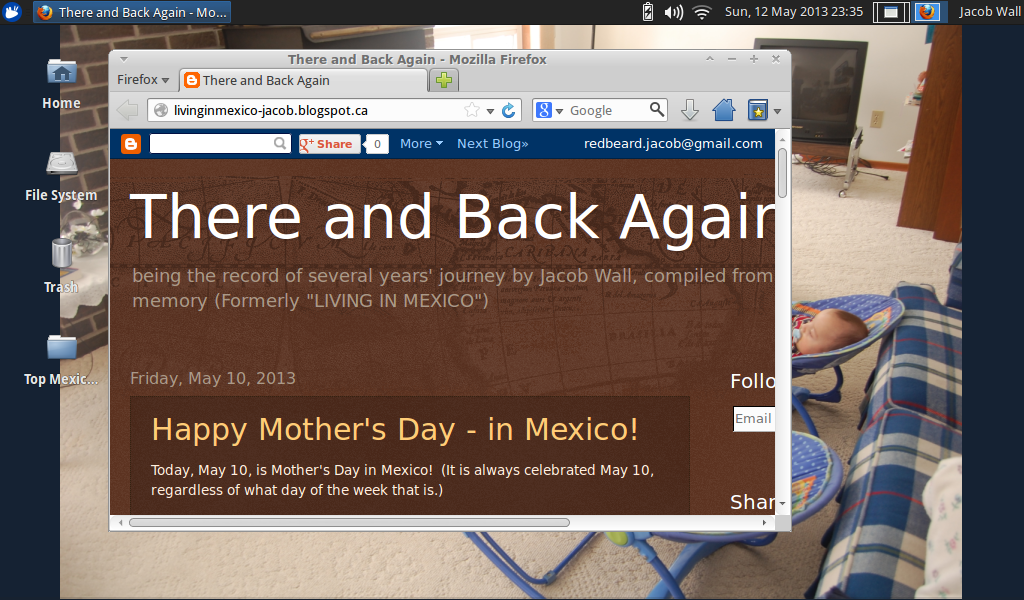
My Xubuntu Desktop after some minor customizations
I'll be trying some of the other light-weight systems I saw, like Lubuntu and Puppy Linux, for some abandoned old computers that are kicking around, just to see how they do when a nice but ultra light-weight system is installed.

Why Not Get a Better Computer?

Some people will wonder why I just didn't invest in a new computer.  Basically, if I had several hundred dollars that I could readily fork out for a computer better than this one, I'd have better things to spend them on.  I use my computer for work, but my needs are so simple, I shouldn't need anything more than my Acer One.

Someone mentioned installing more RAM.  Minis don't take any upgrades whatsoever.  Which brings me back to square one.

Finally, I don't mind the idea of avoiding giving more of my money to Microsoft.  I not on a boycott or anything silly like that, but it sure is a nice bonus.

The Installation and Customization

To install Xubuntu, I had to download a torrent file and then unpack into a USB stick to create a boot drive, and from there it's fast and easy.

The only difficult part is that instructions for just about everything have to be Googled, relying in bloggers.  Their site has basics, but if you don't know what a "torrent" is (my situation) they don't help you much.

There was an option to have Xubuntu running parallel with Windows and choosing between the two at start up.  Stupidly, in a moment of over excitement of canning Windows 7 I opted to wipe Windows off my computer along with all its programs and files.

I had saved all my work, pictures and documents, but I had forgotten to save logins and passwords.  This week has been defined by me hunting out this information again, usually from its original provider or (on the rare occasion) from my brain - nothing of Windows is left on my computer.

Spectacular Performance!

The performance of my computer with Xubuntu is amazing!  I used to power on my computer and go to make a coffee while I waited for Windows 7 to boot.  It now turns on in about 10 seconds.  Programs open faster and run faster.  I used to have to wait about 5 minutes for Skype to close properly.  It now closes instantly.

The file manager in Xubuntu
With a few adjustments to visual preferences (including a desktop background, a little luxury which the Starter version of Windows 7 denied me) everything is smooth running.

Programs and Apps

The biggest time consumer since installing Xubuntu has been choosing and adjusting programs.  But I would rather be spending time on this than waiting for a bogged computer while I should be working.

Most importantly: I owe Firefox and Mozilla an apology.  But I will post about the programs in the days to come.

My Verdict

My recommendation at this point: if
  • you have a computer with tonnes of memory that you will probably never use
  • the monsters of Windows 7 and 8 work well with it
  • they meet your needs
  • you're happy with all of the above,
why look for anything new?

On the other hand, if you find your computer is just getting bogged down and keeps freezing up, try Xubuntu or another light-weight free operating system.  If you take it too the store for repairs, they'll just tell you to buy a new version of Windows (which might do the same thing if your computer is a light-weight) or buy a new computer.  They make the cost of repairs so high that it's not worth it.

Xubuntu may make a computer that you thought was no longer working right a smooth-working and functional machine.

(Disclaimer: I'm by no means an expert on any of this stuff.  Coming into this, I knew almost nothing about Linux and systems like Xubuntu. This means two things: 1. There may very well be much better options than Xubuntu. 2. At least it speaks well for Xubuntu that someone who knows as little as I do can install and use it.)